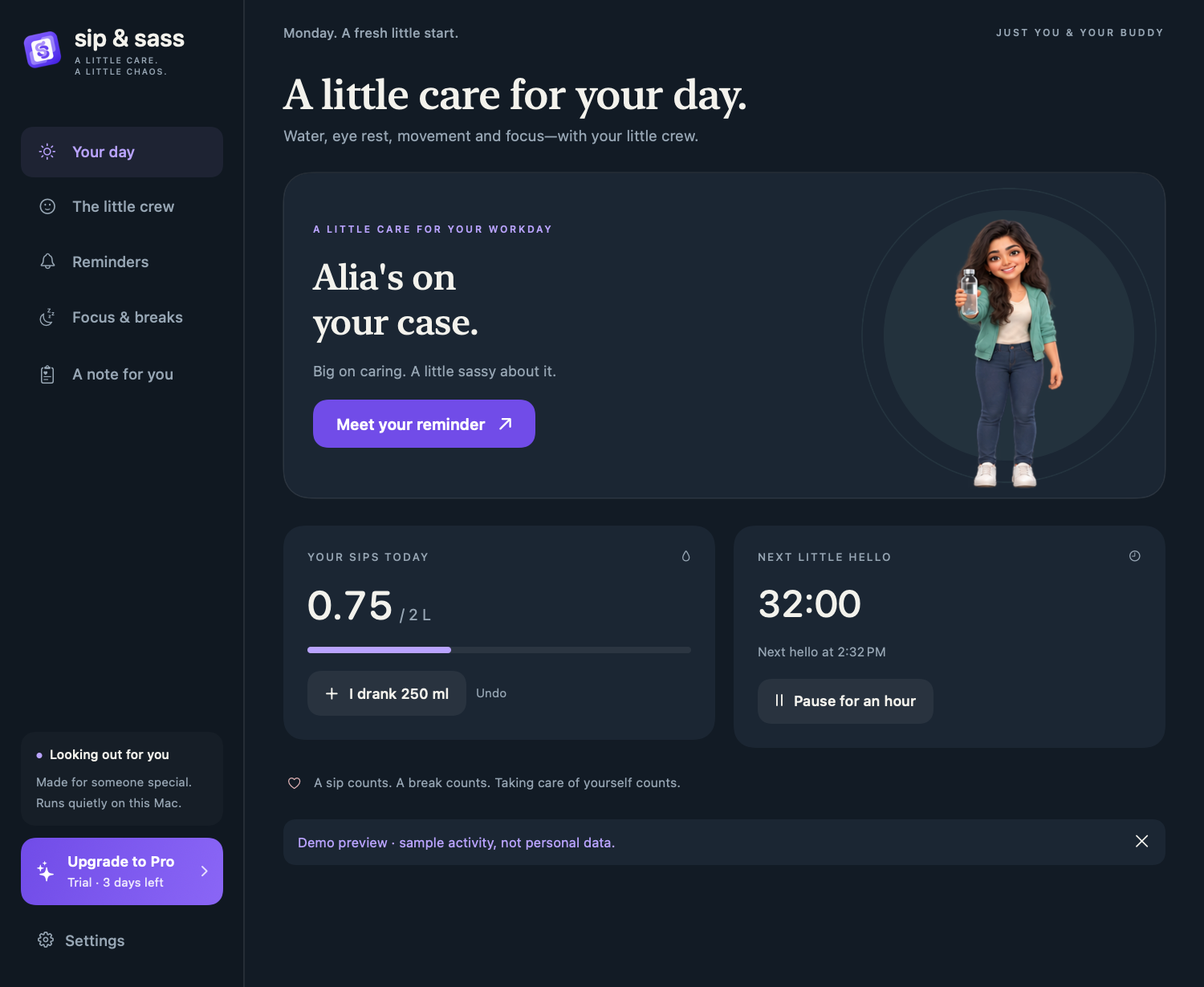
Open Focus & breaks in Sip & Sass to enable eye-rest reminders and movement breaks independently. Set an interval and duration for each. Start Focus or protect a meeting when you want the app to stay quiet.
Water, eye rest and movement are different moments in a workday. They should have different instructions and records. This guide uses the Mac release candidate; its public download is being prepared.
1. Turn on eye-rest reminders
- Open Sip & Sass and choose Focus & breaks.
- Turn on Eye-rest reminders.
- Set how often the nudge appears and how many seconds the break lasts.
- For a familiar starting point, choose Use 20–20–20 preset.
The preset suggests a 20-second look into the distance every 20 minutes. Aim for something roughly 6 metres (20 feet) away. It is an easy prompt to interrupt close-up screen work; it is not a promise to prevent or treat an eye condition.
The American Academy of Ophthalmology’s screen-use guidance recommends taking distance breaks and remembering to blink. During the pause, blink normally and fully rather than squeezing your eyes or staring rigidly at one spot.
2. Take the break away from the countdown
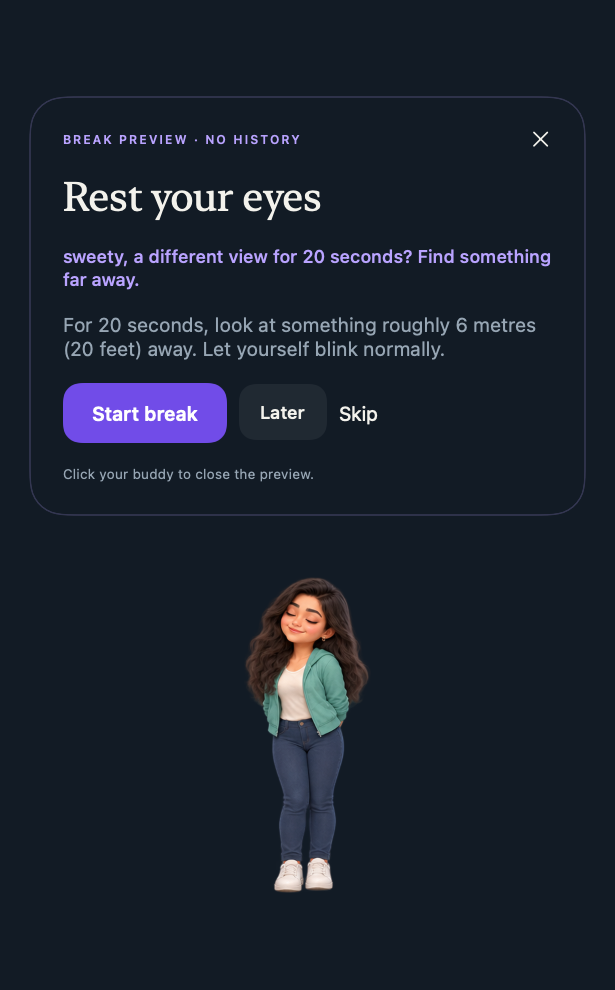
Use Preview an eye rest to see the controls without adding history. A scheduled prompt offers Start break, Later and Skip.
Once you start, look away. There is no benefit to watching the seconds tick down. Use Stop early if you need to end it, or add time with +20 seconds. The timer cannot measure your gaze or blinking, and a completed timer is not proof of eye rest.
Try a distant view across the room or out of a window. Switching from your Mac to a phone still means looking at a nearby screen.
3. Add a separate movement rhythm
In the same page, turn on Movement breaks. Choose how often it appears and the length of the break. A short change of activity that fits your abilities is a sensible place to start: change position, walk a little or leave the desk for a moment.
For example, you might choose a short break after a longer work block and adjust it after a day. That is a personal routine, not a prescribed exercise program. A movement timer cannot verify an activity or measure its intensity.
The WHO physical activity and sedentary behaviour guidelines encourage reducing sedentary time and replacing it with activity. A small desk break can be part of a routine; it is not a substitute for all the movement you need.
4. Make room for focused work
In Focus / Do not disturb, set a duration and choose Start Focus, or choose Until I end it. This quiets Sip & Sass characters, sounds and reminders. It does not turn off notifications in other apps.
The preferred duration chosen in onboarding is only a default for a future session. It does not start one automatically. Start and end sessions deliberately so a saved preference does not become unexpected silence.
If you want other apps quiet too, configure macOS Focus separately. The optional shared Focus safeguard depends on system support and permission; check its status in Settings rather than assuming it follows every system change.
5. Protect meetings and regular quiet hours
Use Protect session in Meetings & presentations when a call or presentation should stay free of reminders. Choose a duration or end it manually. This is more predictable than relying on automatic detection.
Optional microphone and display-mirroring safeguards can help, but dictation may resemble a call and not every screen share is display mirroring. Configure these signals in Settings only if they suit your work.
Set your regular Quiet hours under Reminders. For an unexpected interruption, click the character to snooze a break for 5 minutes, or use a longer menu-bar pause.
Common questions
Does the app know whether I actually took a break?
No. You choose whether to start, stop or skip the timer. Its records describe app interactions, not measured health behaviour. Eye rest and movement never log a glass of water.
Will missed breaks appear after waking my Mac?
No backlog is delivered. The app starts fresh intervals when you return from sleep. See Reminders & focus for how quiet states affect the schedule.
What if my eyes still hurt?
Recurring discomfort or changes in your vision deserve individual advice from an eye-care professional. A configurable reminder is general support for your routine, not a diagnosis or treatment.
Can I use only breaks and turn water off?
Yes. Turn water reminders off under Reminders and enable the break types you want in Focus & breaks. The water-reminder guide covers water configuration separately.