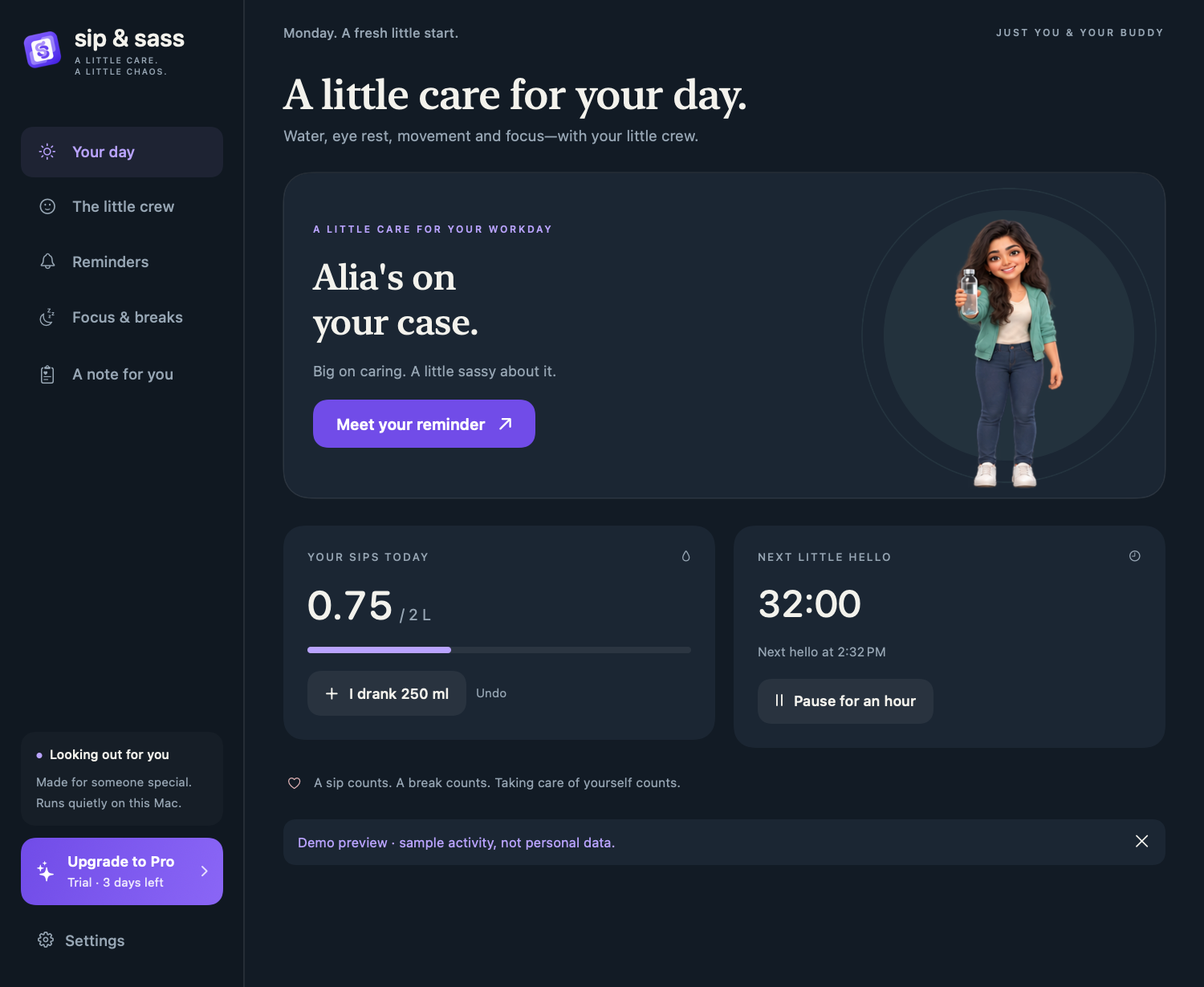
In Sip & Sass, open Reminders, turn on Water reminders, and choose how often your buddy says hello. Set your glass size and personal goal, then use Yes, I drank only when you want to log a drink.
A reminder should help you notice an ordinary need without making your workday feel like a test. Start with a manageable rhythm, keep a drink nearby, and change the interval if it interrupts too often. The steps below describe the Mac release candidate; the public download is being prepared.
1. Choose a comfortable reminder interval
After installing the app, the short introduction lets you pick a water rhythm. You can skip the tour and configure the same settings later.
- Open the app from its S&S menu-bar icon.
- Select Reminders in the sidebar.
- Turn on Water reminders.
- Under Say hello every, choose an interval that fits how you work.
For example, 60 minutes can be a starting point for a less frequent nudge. This is a product setting, not a medical recommendation to drink a fixed amount every hour. Logging a drink restarts the water interval.
2. Set your glass size and personal goal
My glass is the volume attached to a logged glass. Pick the closest size to your usual cup, then set a personal goal you find useful. It is a manual log, not a sensor: the app cannot know whether your glass was full or whether you finished it.
If you use your Mac for four hours, it only sees what you log during those hours. Drinks with breakfast, exercise or dinner do not appear automatically. The app does not lower your goal because your laptop was closed.
The NHS hydration guide describes 6–8 cups or glasses of fluid a day as general guidance, with needs varying by circumstances. Other drinks and food contribute too. Your app goal is a personal preference, not a hydration diagnosis. If you have been given a fluid limit or individual advice, follow that instead.
3. Choose a companion you will enjoy seeing
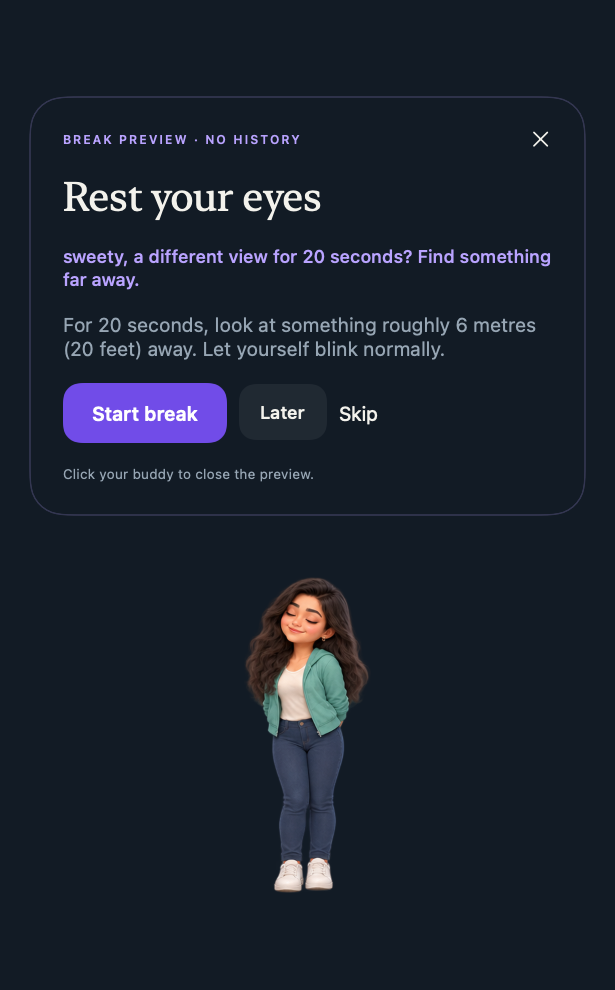
Open The little crew. Dudu, Bubu, Rushie, Alia, Boo and Miso bring different personalities. Use Try it on a card before choosing a buddy. Previews do not add history or switch your active selection.
The Reminders page also lets you choose how much sass you want. A note for you holds the nickname and personal note. A gentler tone may be a better fit if a playful nudge starts to feel distracting.
4. Log, snooze or pause without fuss
- Yes, I drank logs a drink. Use it after drinking, rather than to clear an unwanted prompt.
- Not yet postpones the reminder. Clicking the character also hides it and snoozes water for 10 minutes.
- I drank a glass in the menu bar logs a drink between reminders. Undo an accidental entry with the offered undo action.
- Use the menu-bar pause or a Focus session if you need a longer quiet stretch.
Sound is optional. If you like the visual companion but not an audio cue, turn off A tiny pop sound.
5. Fit reminders to the hours your Mac is on
Reminders need the app running and your Mac awake and unlocked. Closing the main window keeps the app in the menu bar; quitting stops reminders. Launch at login is optional in Settings.
Returning from sleep starts fresh intervals. You do not need to dismiss several missed drinks after lunch or after a day away. Quiet hours, Focus and meeting protection can also keep your buddy out of the way.
If you enable Pause reminders when I’m away, remember that reading without touching the keyboard or pointer may look like absence. Leave it off if it gets in the way.
Common questions
Do I have to drink every time a reminder appears?
No. It is an invitation to check in, not a requirement. Snooze or skip when it is not useful, and adjust your interval if reminders are too frequent.
Do eye-rest breaks add to my water total?
No. Water and break records are separate. The screen-break guide explains the other reminder types.
Does it keep track while my Mac is off?
No. It does not infer drinking or run reminders on a powered-off Mac. Treat its history as your logged record rather than your entire day.