Manual crop
Crop, resize, rotate and flip a single image by hand, then download it. Manual crop is free, with no limit.
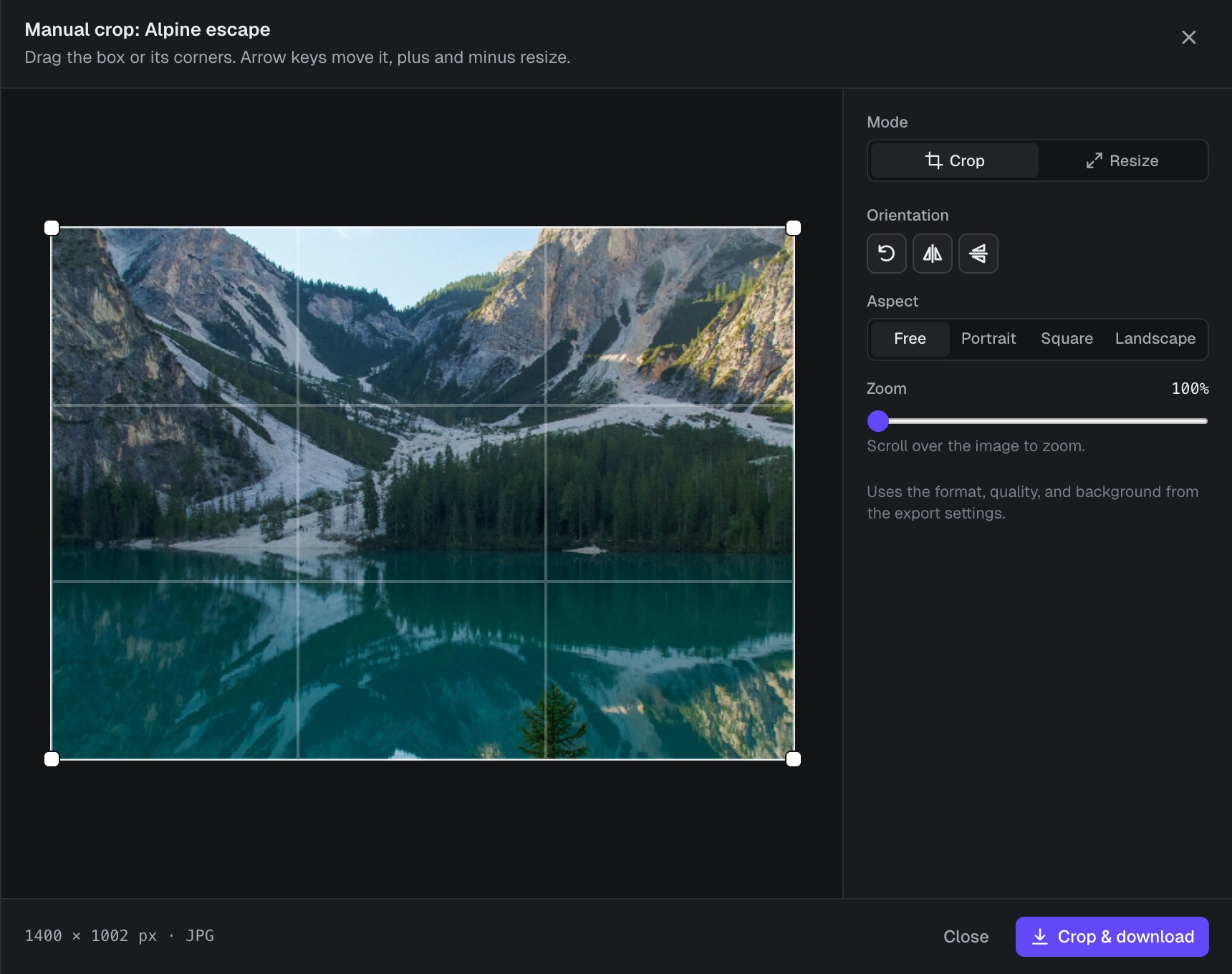
Open the editor
Click the crop icon on a source card in the Sources tab, or Manual crop in a row of the Review tab. The editor opens with the whole image selected.
Crop mode
- Drag inside the box to move it. Drag a corner to resize it.
- With the box focused, the arrow keys move it. Hold Shift to move further. + and − make it bigger or smaller.
- Aspect sets the shape: Free, Portrait (3:4), Square (1:1) or Landscape (4:3). Changing it starts a new centered crop.
- Orientation rotates the image left, or flips it horizontally or vertically.
- Zoom goes from 100% to 600%. Use the slider or scroll over the image.
Resize mode
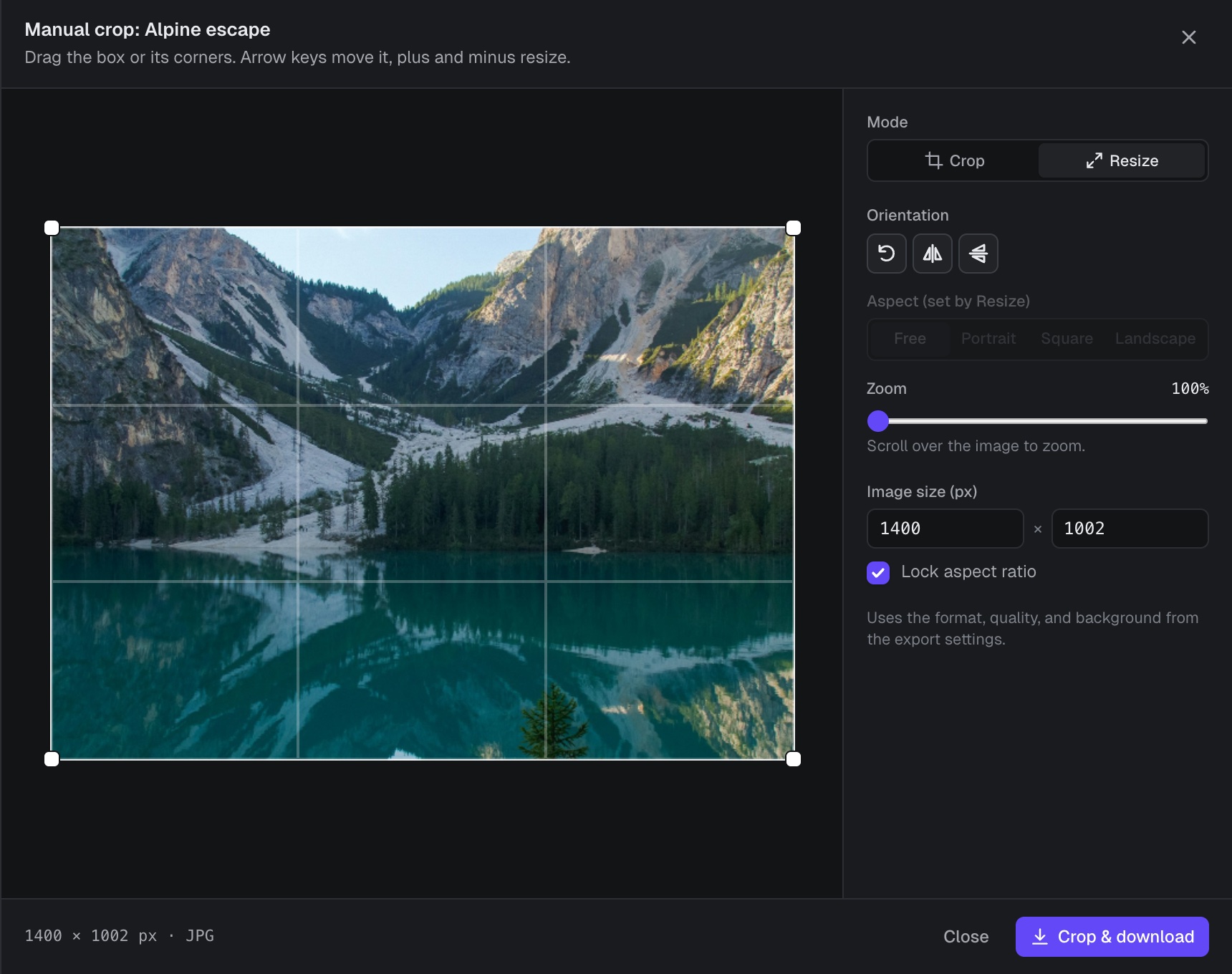
Switch Mode to Resize to set an exact output size under Image size (px), up to 8192 px per side.
- With Lock aspect ratio on, changing one side updates the other.
- With it off, the crop box changes shape to match the new size, so the image is never stretched.
Download
- Check the output size and format at the bottom left.
- Click Crop & download. Croppy saves one file through your browser.
Manual crop uses the format, quality and background from the export settings. The file is named with the file part of your file name pattern, where both {group} and {size} become manual.