Review crops
The Review tab shows every image Croppy will make. Adjust how each source is cropped before you insert or export.
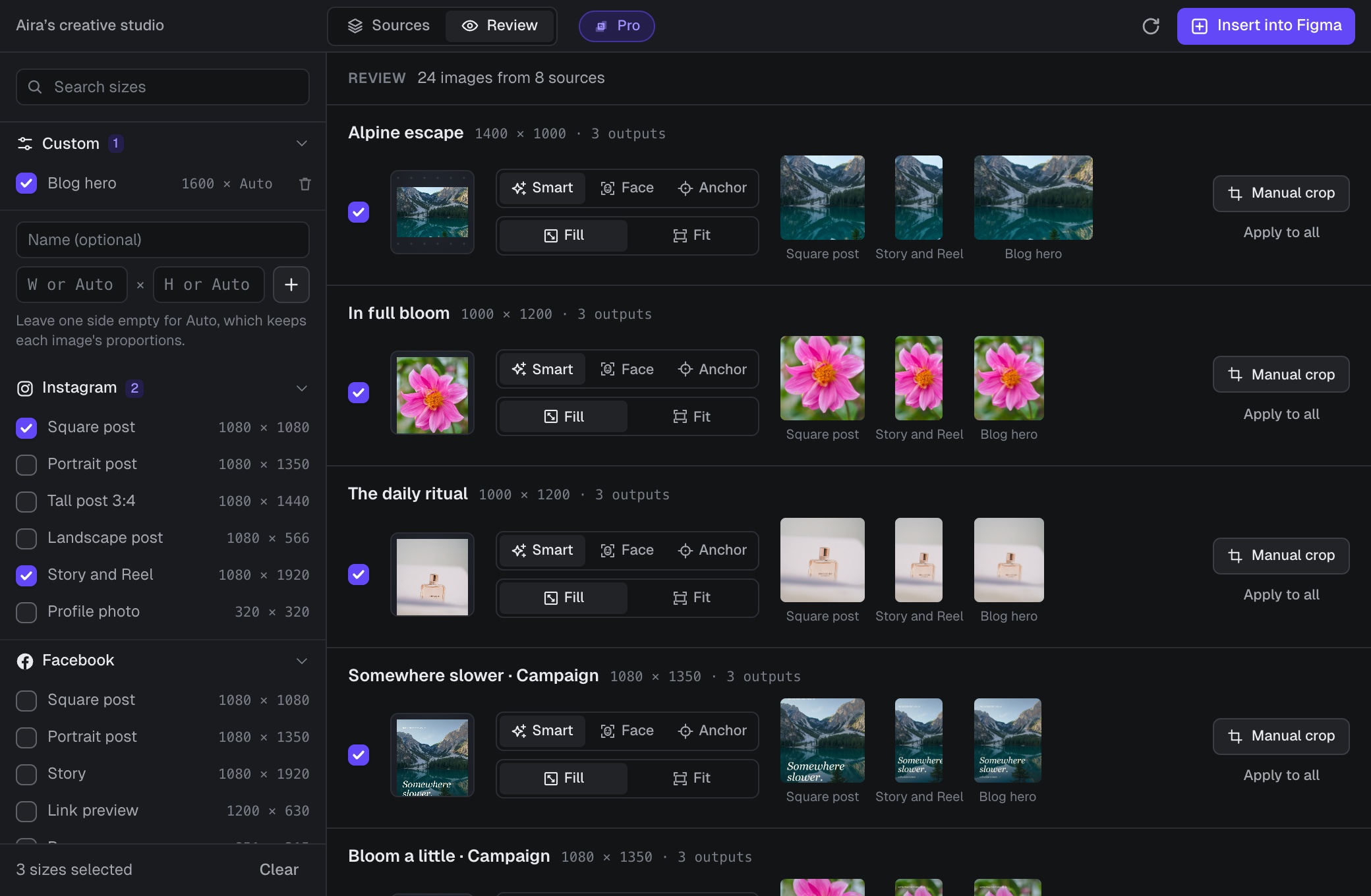
Reading a row

The heading shows the total, such as "24 images from 8 sources". Each row is one source, with:
- a checkbox to include or leave out the source,
- its focus and scale settings,
- a preview of every size, exactly as it will be exported,
- Manual crop and Apply to all.
Unticking a source here dims its row, so you can tick it again. Every source starts with Smart focus and Fill.
Focus: where the crop centers
Focus decides which part of the image stays in a Fill crop.
- Smart finds the most interesting area by looking at edges, skin tones and color. It is a good default for most images.
- Face finds up to 10 faces and centers the crop on the group, so everyone stays in frame whenever they fit the size. It works best when faces fill a fair part of the image. Small faces in wide shots can be missed. If no face is found, Croppy uses Smart focus and says so under the settings.
- Anchor uses a fixed position. Choose Top, Center or Bottom, and Left, Center or Right.

Scale: Fill or Fit
- Fill covers the whole size and crops whatever does not fit.
- Fit shows the whole image and fills the empty space with your background. Set the background color, or transparency for PNG, in the export settings.

Apply to all
Set up one source the way you like, then click Apply to all in its row. Croppy asks before it copies that source's focus, scale and anchor to every included source. It does not change your sizes or export settings.
Skipped outputs
If a size would be too large, Croppy skips just that output and lists the reason at the top of the Review tab. See Limits.
Focus, scale and anchor are saved for each source on the current Figma page. When you are happy, click Insert into Figma.